

Finding a promising site is only the start. Then the questions begin: how many homes could it actually hold? What still needs checking? Who's speaking to the landowner? And where did that title report go? Before long, the work on one good site is scattered: a capacity sketch in one place, call notes in another, and the title report somewhere in your downloads.
That's the gap Projects is built to close. Create a Project from a saved site in LandInsight and you can see what it could hold with scheme design, organise the next steps, and pull together the reports, funding options, and documents you need for your next decision. Your site stays exactly as it is, connected to its Project.
Key highlights
- Projects is new in LandInsight. Create one from a saved site on the Map or in your Pipeline, and take it further with your site data right alongside.
- Your Project opens on Overview, where you can enrich and categorise the key details of the opportunity.
- With scheme design, you draw exclusion areas, add access, and place units. A live preview shows how each change affects capacity and mix, and you can review and export the accommodation schedule.
- Scheme design is built for early, indicative capacity testing and is currently best suited to housebuilders developing lower-density schemes, so you can decide whether a site is worth pursuing before engaging an architect.
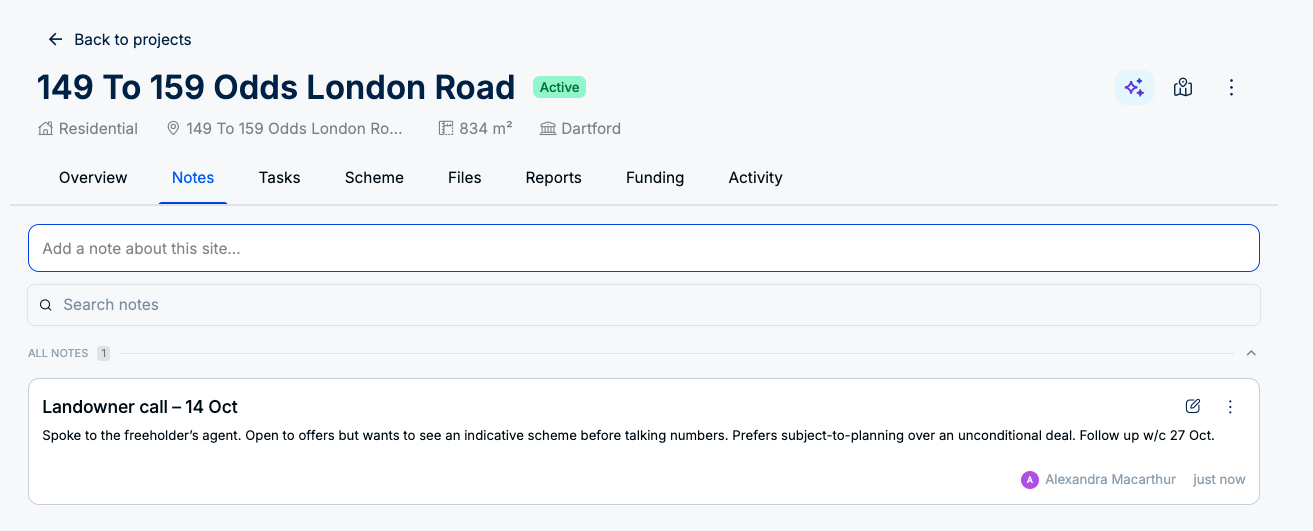
- Tasks and Notes are both new. Assign actions, set priorities and deadlines, and track progress in Tasks, and capture findings and decisions in Notes.
- Keep your documents together in Files and, in the UK, order site reports and partner services and explore funding options, all from the same Project.
What is Projects in LandInsight?
Put simply, Projects is where you take a promising site further.
LandInsight has always been about helping you find and assess sites. Projects picks up at the moment a site goes from "interesting" to "worth a proper look". You create a Project from the site, and the work that follows lives in one place, right next to the site, planning, and title data you already rely on.
Each Project is built around three jobs:
- Define the opportunity and test its potential, with Overview and Scheme.
- Progress the work and keep the context, with Tasks, Notes, and Activity.
- Build the evidence for your next decision, with Files, Reports, and Funding.
How do you create a Project?
In two simple steps:
- Open a saved site on the Map or in your Pipeline. If you haven't saved it yet, save it first.
- Click Create Project.
Your Project builds on your saved site, with relevant details pre-filled in Overview and your Notes, Files, and Activity kept in sync with the Site Assessor. Your site stays as it is, connected to its Project, and you can hop between the two whenever you like.
Your Project opens on Overview, where you can enrich and categorise it with information about the opportunity, the intended development, and the people involved. Think of it as the front page for the site.
How many units can your site hold?
It's the question that comes up before almost any other. Answering it usually means waiting on a layout, or engaging an architect before you're even sure the site is worth it.
Scheme design lets you find out for yourself. Open the Scheme tab and:
- Add exclusion areas. Draw around anything that can't be built on, whether that's a pond, a protected tree, or a strip you need to keep clear. These come out of the developable area.
- Add access. Draw routes into and through your scheme and set their width. Access comes out of the developable area too.
- Place units. Create reusable Project Unit Types, drop units onto the site, and play with the mix.
As you draw, a live preview shows how each change affects capacity and mix. Review the results in the Scheme dashboard, and review and export the accommodation schedule. Change your mind about the access? Move it, and the numbers follow.
Scheme design is built for early, indicative capacity testing, so you can decide whether a site deserves more of your attention. Think of it as a well-informed first sketch rather than the final drawing. It's currently best suited to housebuilders developing lower-density schemes.
Local policy still has the final say on what a site can realistically take. Government guidance on housing and economic land availability assessments notes that estimates of a site's development potential can be guided by local policies on density, and the effective use of land guidance explains how councils approach density. If you're setting up unit types, the nationally described space standard sets out the minimum internal floor areas that many local plans apply to new homes.
How do Tasks, Notes, and Activity keep work moving?
A capacity figure is rarely the end of the conversation. Usually, it's the start of a to-do list. Tasks and Notes are both new, and they're built for exactly that.
Use Tasks to assign actions, set priorities and deadlines, and track progress, so it's clear who's doing what and by when. Tasks start empty, and what goes in it is up to you. Choose a template, such as Resi development starter, to start from a list of typical actions, from contacting the landowner to agreeing a deal, then edit it to suit how you work. Or skip the template and add your own. If you have a tried-and-tested way of doing things, save your list as a template and reuse it on your next Project.
Before you spend on professional due diligence, a few quick checks can tell you a lot. Our piece on five early indicators that make or break a site covers the ones worth running first.
Notes is where your useful information goes - for example the call summary, the reason the deal stalled for three weeks, the thing the planning consultant mentioned in passing that turned out to matter. You can search and pin notes, and anything you jot down while assessing a site stays in sync with its Project, so the context doesn't get lost along the way.
Activity is the change log for your site from when it was first saved, including Notes, Tasks, and their updates, so you can see how the work on a site has moved on.
Where do Files, Reports, and Funding fit in?
Once a site is looking good, you'll want the evidence to back up your next decision. That's now in your Project, too.
- Reports: order site reports and partner services, and open the Appraisal Tool to check whether the numbers stack up. Completed appraisal reports save to the Project's Files.
- Funding: explore funding options for the Project.
- Files: keep uploaded and purchased documents together, rather than lost in a downloads folder.
Need a refresher on the numbers behind an appraisal? Our guides to GDV in property and how to value development land are a good place to start.
FAQs
Does creating a Project change my site?
No. Your site stays as it is, connected to its Project.
Does Projects work for non-residential sites?
Yes. Scheme design is currently best suited to housebuilders developing lower-density schemes. A scheme can include more than one development type, and for mixed-use schemes the accommodation schedule is broken down by type. The rest of a Project works for any site: your tasks, notes, and documents, plus reports and funding options in the UK, all kept with the site.
Why is Tasks empty when I create a Project?
Because it's yours to fill. Tasks start empty in every new Project, so choose a template, such as Resi development starter, or add your own.
Can I use Notes outside Projects?
Yes. You can add notes while assessing a site, and they stay in sync with its Project.
Get started with Projects in LandInsight
Projects is the first step in bringing more of the work of progressing a site into LandInsight. We're keen to hear how you use it.
Already a LandInsight customer? Open a saved site on the Map or in your Pipeline and click Create Project. No saved sites yet? Open any site on the Map, save it in the Site Assessor, then click Create Project.
Log in to LandInsight and create your first Project
New to LandInsight? Book a demo and we'll show you Projects in action.
Related reading
- 5 Early Indicators That Make (or Break) a Site Before Due Diligence Even Begins
- How to Value Development Land: Methods, Calculators, and Market Rates
- GDV in Property: What It Means and How to Calculate It
- A Developer's Guide to Property Site Sourcing 2026
- Why the Best Developers Build Pipelines Early